Modern applications demand high availability and the ability to scale reads without compromising performance. One of the most common strategies to achieve this is Replication. In this setup, we configured a single database to act as the leader (master) and handle all write operations, while three replicas handle read operations. In this article, we’ll walk through how to set up MySQL single-leader replication on your local machine using Docker. Once the replication is working, we’ll connect it to a Node.js application using Sequelize ORM, so that reads are routed to the replica and writes go to the master. By the end, you’ll have a working environment where you can see replication in real time Prerequisites knowledge of database replication Background knowledge of docker and docker compose Background knowledge of Nodejs and how to run a NodeJS server An Overview of what we are building Setup Setup our database servers on docker compose in the root of our project directory, create a file named docker-compose.yml with the following content to setup our mysql primary and replica databases. \ \ name: "learn-replica" volumes: mysqlMasterDatabase: mysqlSlaveDatabase: mysqlSlaveDatabaseII: mysqlSlaveDatabaseIII: networks: mysql-replication-network: services: mysql-master: image: mysql:latest container_name: mysql-master command: --server-id=1 --log-bin=ON environment: MYSQL_ROOT_PASSWORD: master MYSQL_DATABASE: replicaDb ports: - "3306:3306" volumes: - mysqlMasterDatabase:/var/lib/mysql networks: - mysql-replication-network mysql-slave: image: mysql:latest container_name: mysql-slave command: --server-id=2 --log-bin=ON environment: MYSQL_ROOT_PASSWORD: slave MYSQL_DATABASE: replicaDb MYSQL_ROOT_HOST: "%" ports: - "3307:3306" volumes: - mysqlSlaveDatabase:/var/lib/mysql depends_on: - mysql-master networks: - mysql-replication-network mysql-slaveII: image: mysql:latest container_name: mysql-slaveII command: --server-id=2 --log-bin=ON environment: MYSQL_ROOT_PASSWORD: slave MYSQL_DATABASE: replicaDb MYSQL_ROOT_HOST: "%" ports: - "3308:3306" volumes: - mysqlSlaveDatabaseII:/var/lib/mysql depends_on: - mysql-master networks: - mysql-replication-network mysql-slaveIII: image: mysql:latest container_name: mysql-slaveIII command: --server-id=3 --log-bin=ON environment: MYSQL_ROOT_PASSWORD: slave MYSQL_DATABASE: replicaDb MYSQL_ROOT_HOST: "%" ports: - "3309:3306" volumes: - mysqlSlaveDatabaseIII:/var/lib/mysql depends_on: - mysql-master networks: - mysql-replication-network In this setup, I’m creating a master database container called mysql-master and 3 replica containers called mysql-slave, mysql-slaveII and mysql-slaveIII. I won’t go too deep into the docker-compose.yml file since it’s just a basic setup, but I do want to walk you through the command line instructions used in all four services because that’s where things get interesting. \ command: --server-id=1 --log-bin=ON The --server-id option gives each MySQL server in your replication setup its own name tag. Each one has to be unique and without it, replication won’t work at all. Another cool option not included here is binlog_format=ROW. This tells MySQL how to keep track of changes before passing them along to the replicas. By default, MySQL already uses row-based replication, but you can explicitly set it to ROW to be sure or switch it to STATEMENT if you’d rather log the actual SQL statements instead of row-by-row changes. \ Run our containers on docker Now, in the terminal, we can run the following command to spin up our database containers: docker-compose up -d \ Setting Up Our Master (Primary) Server To configure our master server, we would have to first access the running instance on docker using the following command docker exec -it mysql-master bash This command opens an interactive Bash shell inside the running Docker container named mysql-master, allowing us to run commands directly inside that container. \ Now that we’re inside the container, we can access the MySQL server and start running commands. type: mysql -uroot -p This will log you into MySQL as the root user. You’ll be prompted to enter the password you set in your docker-compose.yml file. \ Next, we need to create a special user that our replicas will use to connect to the master server and pull data. Inside the MySQL prompt, run the following commands: \ CREATE USER 'repl_user'@'%' IDENTIFIED BY 'replication_pass'; GRANT REPLICATION SLAVE ON *.* TO 'repl_user'@'%'; FLUSH PRIVILEGES; Here’s what’s happening: CREATE USER makes a new MySQL user called repl_user with the password replication_pass. GRANT REPLICATION SLAVE gives this user permission to act as a replication client. FLUSH PRIVILEGES tells MySQL to reload the user permissions so they take effect immediately. \ Time to Configure the Replica (Secondary) Servers a. First, let’s access the replica containers the same way we did with the master. Run this command in your terminal for each of the replica containers: \ docker exec -it <replica_container_name> bash mysql -uroot -p <replica_container_name> should be replace with the name of the replica container you are trying to setup b. Now it’s time to tell our replica where to get its data from. While inside the replica’s MySQL shell, run the following command to configure replication using the master’s details: CHANGE REPLICATION SOURCE TO SOURCE_HOST='mysql-master', SOURCE_USER='repl_user', SOURCE_PASSWORD='replication_pass', GET_SOURCE_PUBLIC_KEY=1; With the replication settings in place, let’s fire up the replica and get it syncing with the master. Still inside the MySQL shell on the replica, run: START REPLICA; This starts the replication process. To make sure everything is working, check the replica’s status with: \ SHOW REPLICA STATUS\G; Look for Replica_IO_Running and Replica_SQL_Running — if both say Yes, congratulations! 🎉 Your replica is now successfully connected to the master and replicating data in real time. \ Testing Our Replication Setup from the Node.js App Now that our replication is successfully set up, we can configure our Node.js server to observe the real-time effect of data being replicated from the master server to the replica server whenever we write to it. We start by installing the following dependencies: \ npm i express mysql2 sequelize \ Now create a folder called src in the root directory and add the following files inside that folder connection.js, index.js and model.js. Our current directory should look like this We can now set up our connections to our master and replica server in the connection.js file as shown below \ const Sequelize = require("sequelize"); const sequelize = new Sequelize({ dialect: "mysql", replication: { write: { host: "127.0.0.1", username: "root", password: "master", database: "replicaDb", }, read: [ { host: "127.0.0.1", username: "root", password: "slave", database: "replicaDb", port: 3307 }, { host: "127.0.0.1", username: "root", password: "slave", database: "replicaDb", port: 3308 }, { host: "127.0.0.1", username: "root", password: "slave", database: "replicaDb", port: 3309 }, ], }, }); async function connectdb() { try { await sequelize.authenticate(); } catch (error) { console.error("❌ unable to connect to the follower database", error); } } connectdb(); module.exports = { sequelize, }; \ We can now create a User table in the model.js file \ const {DataTypes} = require("sequelize"); const { sequelize } = require("./connection"); const User = sequelize.define("User", { name: { type: DataTypes.STRING, allowNull: false, }, email: { type: DataTypes.STRING, unique: true, allowNull: false, }, }); module.exports = User \ and finally in our index.js file we can start our server and listen for connections on port 3000. from the code sample below, all inserts or updates will be routed by sequelize to the master server. while all read queries will be routed to the read replicas. \ const express = require("express"); const { sequelize } = require("./connection"); const User = require("./model"); const app = express(); app.use(express.json()); async function main() { await sequelize.sync({ alter: true }); app.get("/", (req, res) => { res.status(200).json({ message: "first step to setting server up", }); }); app.post("/user", async (req, res) => { const { email, name } = req.body; let newUser = await User.build({ name, email, }); // This INSERT will go to the write (master) connection newUser = newUser.save({ returning: false }); res.status(201).json({ message: "User successfully created", }); }); app.get("/user", async (req, res) => { // This SELECT query will go to one of the read replicas const users = await User.findAll(); res.status(200).json(users); }); app.listen(3000, () => { console.log("server has connected"); }); } main(); When you make a POST request to the /users endpoint, take a moment to check both the master and replica servers to observe how data is replicated in real time. Right now, we are relying on Sequelize to automatically route requests, which works for development but isn’t robust enough for a production environment. In particular, if the master node goes down, Sequelize cannot automatically redirect requests to a newly elected leader. In the next part of this series, we’ll explore strategies to handle these challengesModern applications demand high availability and the ability to scale reads without compromising performance. One of the most common strategies to achieve this is Replication. In this setup, we configured a single database to act as the leader (master) and handle all write operations, while three replicas handle read operations. In this article, we’ll walk through how to set up MySQL single-leader replication on your local machine using Docker. Once the replication is working, we’ll connect it to a Node.js application using Sequelize ORM, so that reads are routed to the replica and writes go to the master. By the end, you’ll have a working environment where you can see replication in real time Prerequisites knowledge of database replication Background knowledge of docker and docker compose Background knowledge of Nodejs and how to run a NodeJS server An Overview of what we are building Setup Setup our database servers on docker compose in the root of our project directory, create a file named docker-compose.yml with the following content to setup our mysql primary and replica databases. \ \ name: "learn-replica" volumes: mysqlMasterDatabase: mysqlSlaveDatabase: mysqlSlaveDatabaseII: mysqlSlaveDatabaseIII: networks: mysql-replication-network: services: mysql-master: image: mysql:latest container_name: mysql-master command: --server-id=1 --log-bin=ON environment: MYSQL_ROOT_PASSWORD: master MYSQL_DATABASE: replicaDb ports: - "3306:3306" volumes: - mysqlMasterDatabase:/var/lib/mysql networks: - mysql-replication-network mysql-slave: image: mysql:latest container_name: mysql-slave command: --server-id=2 --log-bin=ON environment: MYSQL_ROOT_PASSWORD: slave MYSQL_DATABASE: replicaDb MYSQL_ROOT_HOST: "%" ports: - "3307:3306" volumes: - mysqlSlaveDatabase:/var/lib/mysql depends_on: - mysql-master networks: - mysql-replication-network mysql-slaveII: image: mysql:latest container_name: mysql-slaveII command: --server-id=2 --log-bin=ON environment: MYSQL_ROOT_PASSWORD: slave MYSQL_DATABASE: replicaDb MYSQL_ROOT_HOST: "%" ports: - "3308:3306" volumes: - mysqlSlaveDatabaseII:/var/lib/mysql depends_on: - mysql-master networks: - mysql-replication-network mysql-slaveIII: image: mysql:latest container_name: mysql-slaveIII command: --server-id=3 --log-bin=ON environment: MYSQL_ROOT_PASSWORD: slave MYSQL_DATABASE: replicaDb MYSQL_ROOT_HOST: "%" ports: - "3309:3306" volumes: - mysqlSlaveDatabaseIII:/var/lib/mysql depends_on: - mysql-master networks: - mysql-replication-network In this setup, I’m creating a master database container called mysql-master and 3 replica containers called mysql-slave, mysql-slaveII and mysql-slaveIII. I won’t go too deep into the docker-compose.yml file since it’s just a basic setup, but I do want to walk you through the command line instructions used in all four services because that’s where things get interesting. \ command: --server-id=1 --log-bin=ON The --server-id option gives each MySQL server in your replication setup its own name tag. Each one has to be unique and without it, replication won’t work at all. Another cool option not included here is binlog_format=ROW. This tells MySQL how to keep track of changes before passing them along to the replicas. By default, MySQL already uses row-based replication, but you can explicitly set it to ROW to be sure or switch it to STATEMENT if you’d rather log the actual SQL statements instead of row-by-row changes. \ Run our containers on docker Now, in the terminal, we can run the following command to spin up our database containers: docker-compose up -d \ Setting Up Our Master (Primary) Server To configure our master server, we would have to first access the running instance on docker using the following command docker exec -it mysql-master bash This command opens an interactive Bash shell inside the running Docker container named mysql-master, allowing us to run commands directly inside that container. \ Now that we’re inside the container, we can access the MySQL server and start running commands. type: mysql -uroot -p This will log you into MySQL as the root user. You’ll be prompted to enter the password you set in your docker-compose.yml file. \ Next, we need to create a special user that our replicas will use to connect to the master server and pull data. Inside the MySQL prompt, run the following commands: \ CREATE USER 'repl_user'@'%' IDENTIFIED BY 'replication_pass'; GRANT REPLICATION SLAVE ON *.* TO 'repl_user'@'%'; FLUSH PRIVILEGES; Here’s what’s happening: CREATE USER makes a new MySQL user called repl_user with the password replication_pass. GRANT REPLICATION SLAVE gives this user permission to act as a replication client. FLUSH PRIVILEGES tells MySQL to reload the user permissions so they take effect immediately. \ Time to Configure the Replica (Secondary) Servers a. First, let’s access the replica containers the same way we did with the master. Run this command in your terminal for each of the replica containers: \ docker exec -it <replica_container_name> bash mysql -uroot -p <replica_container_name> should be replace with the name of the replica container you are trying to setup b. Now it’s time to tell our replica where to get its data from. While inside the replica’s MySQL shell, run the following command to configure replication using the master’s details: CHANGE REPLICATION SOURCE TO SOURCE_HOST='mysql-master', SOURCE_USER='repl_user', SOURCE_PASSWORD='replication_pass', GET_SOURCE_PUBLIC_KEY=1; With the replication settings in place, let’s fire up the replica and get it syncing with the master. Still inside the MySQL shell on the replica, run: START REPLICA; This starts the replication process. To make sure everything is working, check the replica’s status with: \ SHOW REPLICA STATUS\G; Look for Replica_IO_Running and Replica_SQL_Running — if both say Yes, congratulations! 🎉 Your replica is now successfully connected to the master and replicating data in real time. \ Testing Our Replication Setup from the Node.js App Now that our replication is successfully set up, we can configure our Node.js server to observe the real-time effect of data being replicated from the master server to the replica server whenever we write to it. We start by installing the following dependencies: \ npm i express mysql2 sequelize \ Now create a folder called src in the root directory and add the following files inside that folder connection.js, index.js and model.js. Our current directory should look like this We can now set up our connections to our master and replica server in the connection.js file as shown below \ const Sequelize = require("sequelize"); const sequelize = new Sequelize({ dialect: "mysql", replication: { write: { host: "127.0.0.1", username: "root", password: "master", database: "replicaDb", }, read: [ { host: "127.0.0.1", username: "root", password: "slave", database: "replicaDb", port: 3307 }, { host: "127.0.0.1", username: "root", password: "slave", database: "replicaDb", port: 3308 }, { host: "127.0.0.1", username: "root", password: "slave", database: "replicaDb", port: 3309 }, ], }, }); async function connectdb() { try { await sequelize.authenticate(); } catch (error) { console.error("❌ unable to connect to the follower database", error); } } connectdb(); module.exports = { sequelize, }; \ We can now create a User table in the model.js file \ const {DataTypes} = require("sequelize"); const { sequelize } = require("./connection"); const User = sequelize.define("User", { name: { type: DataTypes.STRING, allowNull: false, }, email: { type: DataTypes.STRING, unique: true, allowNull: false, }, }); module.exports = User \ and finally in our index.js file we can start our server and listen for connections on port 3000. from the code sample below, all inserts or updates will be routed by sequelize to the master server. while all read queries will be routed to the read replicas. \ const express = require("express"); const { sequelize } = require("./connection"); const User = require("./model"); const app = express(); app.use(express.json()); async function main() { await sequelize.sync({ alter: true }); app.get("/", (req, res) => { res.status(200).json({ message: "first step to setting server up", }); }); app.post("/user", async (req, res) => { const { email, name } = req.body; let newUser = await User.build({ name, email, }); // This INSERT will go to the write (master) connection newUser = newUser.save({ returning: false }); res.status(201).json({ message: "User successfully created", }); }); app.get("/user", async (req, res) => { // This SELECT query will go to one of the read replicas const users = await User.findAll(); res.status(200).json(users); }); app.listen(3000, () => { console.log("server has connected"); }); } main(); When you make a POST request to the /users endpoint, take a moment to check both the master and replica servers to observe how data is replicated in real time. Right now, we are relying on Sequelize to automatically route requests, which works for development but isn’t robust enough for a production environment. In particular, if the master node goes down, Sequelize cannot automatically redirect requests to a newly elected leader. In the next part of this series, we’ll explore strategies to handle these challenges
MySQL Single Leader Replication with Node.js and Docker

2025/09/18 14:44
7 min read
For feedback or concerns regarding this content, please contact us at crypto.news@mexc.com

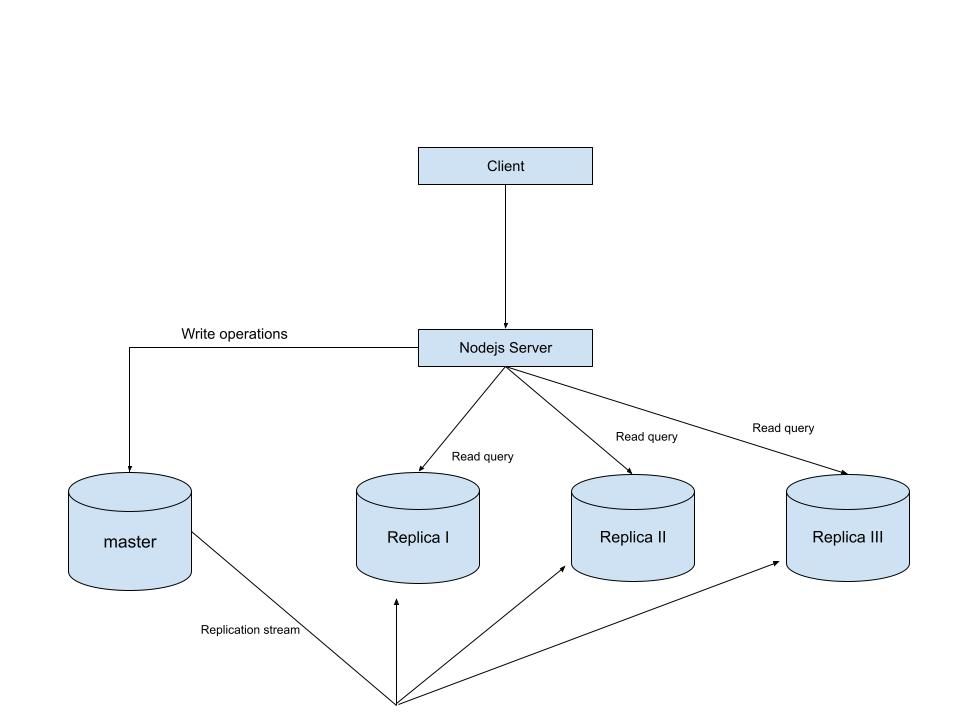
Modern applications demand high availability and the ability to scale reads without compromising performance. One of the most common strategies to achieve this is Replication. In this setup, we configured a single database to act as the leader (master) and handle all write operations, while three replicas handle read operations.

In this article, we’ll walk through how to set up MySQL single-leader replication on your local machine using Docker. Once the replication is working, we’ll connect it to a Node.js application using Sequelize ORM, so that reads are routed to the replica and writes go to the master. By the end, you’ll have a working environment where you can see replication in real time

Prerequisites

  • knowledge of database replication
  • Background knowledge of docker and docker compose
  • Background knowledge of Nodejs and how to run a NodeJS server

An Overview of what we are building

High level architecture of what we are building

Setup

  1. Setup our database servers on docker compose

    in the root of our project directory, create a file named docker-compose.yml with the following content to setup our mysql primary and replica databases.

    \ \

   name: "learn-replica"     volumes:      mysqlMasterDatabase:      mysqlSlaveDatabase:      mysqlSlaveDatabaseII:      mysqlSlaveDatabaseIII:     networks:      mysql-replication-network:      services:      mysql-master:         image: mysql:latest         container_name: mysql-master         command: --server-id=1 --log-bin=ON           environment:            MYSQL_ROOT_PASSWORD: master            MYSQL_DATABASE: replicaDb         ports:           - "3306:3306"         volumes:          - mysqlMasterDatabase:/var/lib/mysql         networks:          - mysql-replication-network       mysql-slave:         image: mysql:latest         container_name: mysql-slave         command: --server-id=2 --log-bin=ON          environment:            MYSQL_ROOT_PASSWORD: slave            MYSQL_DATABASE: replicaDb            MYSQL_ROOT_HOST: "%"         ports:           - "3307:3306"         volumes:          - mysqlSlaveDatabase:/var/lib/mysql         depends_on:           - mysql-master         networks:          - mysql-replication-network      mysql-slaveII:         image: mysql:latest         container_name: mysql-slaveII         command: --server-id=2 --log-bin=ON          environment:            MYSQL_ROOT_PASSWORD: slave            MYSQL_DATABASE: replicaDb            MYSQL_ROOT_HOST: "%"         ports:           - "3308:3306"         volumes:          - mysqlSlaveDatabaseII:/var/lib/mysql         depends_on:           - mysql-master         networks:          - mysql-replication-network        mysql-slaveIII:         image: mysql:latest         container_name: mysql-slaveIII         command: --server-id=3 --log-bin=ON          environment:            MYSQL_ROOT_PASSWORD: slave            MYSQL_DATABASE: replicaDb            MYSQL_ROOT_HOST: "%"         ports:           - "3309:3306"         volumes:          - mysqlSlaveDatabaseIII:/var/lib/mysql         depends_on:           - mysql-master         networks:          - mysql-replication-network 

In this setup, I’m creating a master database container called mysql-master and 3 replica containers called mysql-slave, mysql-slaveII and mysql-slaveIII. I won’t go too deep into the docker-compose.yml file since it’s just a basic setup, but I do want to walk you through the command line instructions used in all four services because that’s where things get interesting.

\

   command: --server-id=1 --log-bin=ON 

The --server-id option gives each MySQL server in your replication setup its own name tag. Each one has to be unique and without it, replication won’t work at all.

Another cool option not included here is binlog_format=ROW. This tells MySQL how to keep track of changes before passing them along to the replicas. By default, MySQL already uses row-based replication, but you can explicitly set it to ROW to be sure or switch it to STATEMENT if you’d rather log the actual SQL statements instead of row-by-row changes.

\

  1. Run our containers on docker

    Now, in the terminal, we can run the following command to spin up our database containers:

    docker-compose up -d

    \

  2. Setting Up Our Master (Primary) Server

  3. To configure our master server, we would have to first access the running instance on docker using the following command

    docker exec -it mysql-master bash

    This command opens an interactive Bash shell inside the running Docker container named mysql-master, allowing us to run commands directly inside that container.

    \

  4. Now that we’re inside the container, we can access the MySQL server and start running commands.

    type:

      mysql -uroot -p 

    This will log you into MySQL as the root user. You’ll be prompted to enter the password you set in your docker-compose.yml file.

    \

  5. Next, we need to create a special user that our replicas will use to connect to the master server and pull data. Inside the MySQL prompt, run the following commands:

    \

   CREATE USER 'repl_user'@'%' IDENTIFIED BY 'replication_pass';      GRANT REPLICATION SLAVE ON *.* TO 'repl_user'@'%';      FLUSH PRIVILEGES; 

Here’s what’s happening:

  • CREATE USER makes a new MySQL user called repl_user with the password replication_pass.

  • GRANT REPLICATION SLAVE gives this user permission to act as a replication client.

  • FLUSH PRIVILEGES tells MySQL to reload the user permissions so they take effect immediately.

    \

  1. Time to Configure the Replica (Secondary) Servers

    a. First, let’s access the replica containers the same way we did with the master. Run this command in your terminal for each of the replica containers:

    \

   docker exec -it <replica_container_name> bash    mysql -uroot -p 

<replica_container_name> should be replace with the name of the replica container you are trying to setup

b. Now it’s time to tell our replica where to get its data from. While inside the replica’s MySQL shell, run the following command to configure replication using the master’s details:

 CHANGE REPLICATION SOURCE TO   SOURCE_HOST='mysql-master',   SOURCE_USER='repl_user',   SOURCE_PASSWORD='replication_pass',   GET_SOURCE_PUBLIC_KEY=1; 

With the replication settings in place, let’s fire up the replica and get it syncing with the master. Still inside the MySQL shell on the replica, run:

START REPLICA; 

This starts the replication process. To make sure everything is working, check the replica’s status with:

\

SHOW REPLICA STATUS\G; 

Look for Replica_IO_Running and Replica_SQL_Running — if both say Yes, congratulations! 🎉 Your replica is now successfully connected to the master and replicating data in real time.

\

Testing Our Replication Setup from the Node.js App

Now that our replication is successfully set up, we can configure our Node.js server to observe the real-time effect of data being replicated from the master server to the replica server whenever we write to it.

We start by installing the following dependencies:

\

npm i express mysql2 sequelize 

\ Now create a folder called src in the root directory and add the following files inside that folder connection.js, index.js and model.js. Our current directory should look like this
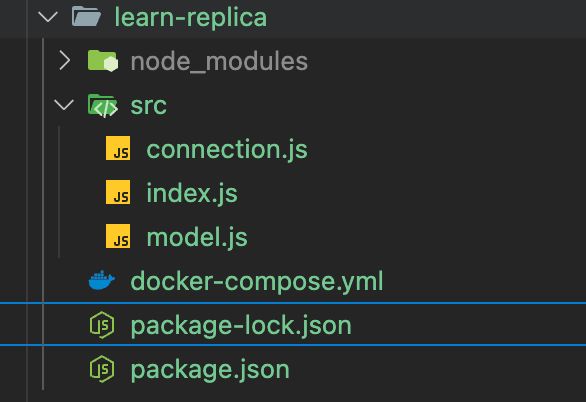
Our current project directory

We can now set up our connections to our master and replica server in the connection.js file as shown below

\

const Sequelize = require("sequelize");  const sequelize = new Sequelize({   dialect: "mysql",   replication: {     write: {       host: "127.0.0.1",       username: "root",       password: "master",       database: "replicaDb",     },     read: [       {         host: "127.0.0.1",         username: "root",         password: "slave",         database: "replicaDb",         port: 3307       },      {         host: "127.0.0.1",         username: "root",         password: "slave",         database: "replicaDb",         port: 3308       },        {         host: "127.0.0.1",         username: "root",         password: "slave",         database: "replicaDb",         port: 3309       },     ],   },  });  async function connectdb() {   try {     await sequelize.authenticate();   } catch (error) {     console.error("❌ unable to connect to the follower database", error);   } }  connectdb();  module.exports = {   sequelize, }; 

\ We can now create a User table in the model.js file

\

const {DataTypes} = require("sequelize"); const { sequelize } = require("./connection");  const User = sequelize.define("User", {   name: {     type: DataTypes.STRING,     allowNull: false,   },   email: {     type: DataTypes.STRING,     unique: true,     allowNull: false,   }, });  module.exports = User 

\ and finally in our index.js file we can start our server and listen for connections on port 3000. from the code sample below, all inserts or updates will be routed by sequelize to the master server. while all read queries will be routed to the read replicas.

\

const express = require("express"); const { sequelize } = require("./connection"); const User = require("./model");  const app = express();  app.use(express.json());  async function main() {   await sequelize.sync({ alter: true });    app.get("/", (req, res) => {     res.status(200).json({       message: "first step to setting server up",     });   });    app.post("/user", async (req, res) => {     const { email, name } = req.body;      let newUser = await User.build({       name,       email,     });      // This INSERT will go to the write (master) connection     newUser = newUser.save({ returning: false });      res.status(201).json({       message: "User successfully created",     });   });    app.get("/user", async (req, res) => {     // This SELECT query will go to one of the read replicas     const users = await User.findAll();      res.status(200).json(users);   });    app.listen(3000, () => {     console.log("server has connected");   }); }  main(); 

When you make a POST request to the /users endpoint, take a moment to check both the master and replica servers to observe how data is replicated in real time. Right now, we are relying on Sequelize to automatically route requests, which works for development but isn’t robust enough for a production environment. In particular, if the master node goes down, Sequelize cannot automatically redirect requests to a newly elected leader.

In the next part of this series, we’ll explore strategies to handle these challenges.

Market Opportunity
NODE Logo
NODE Price(NODE)
$0.01392
$0.01392$0.01392
-0.50%
USD
NODE (NODE) Live Price Chart
Disclaimer: The articles reposted on this site are sourced from public platforms and are provided for informational purposes only. They do not necessarily reflect the views of MEXC. All rights remain with the original authors. If you believe any content infringes on third-party rights, please contact crypto.news@mexc.com for removal. MEXC makes no guarantees regarding the accuracy, completeness, or timeliness of the content and is not responsible for any actions taken based on the information provided. The content does not constitute financial, legal, or other professional advice, nor should it be considered a recommendation or endorsement by MEXC.

You May Also Like

CEO Sandeep Nailwal Shared Highlights About RWA on Polygon

CEO Sandeep Nailwal Shared Highlights About RWA on Polygon

The post CEO Sandeep Nailwal Shared Highlights About RWA on Polygon appeared on BitcoinEthereumNews.com. Polygon CEO Sandeep Nailwal highlighted Polygon’s lead in global bonds, Spiko US T-Bill, and Spiko Euro T-Bill. Polygon published an X post to share that its roadmap to GigaGas was still scaling. Sentiments around POL price were last seen to be bearish. Polygon CEO Sandeep Nailwal shared key pointers from the Dune and RWA.xyz report. These pertain to highlights about RWA on Polygon. Simultaneously, Polygon underlined its roadmap towards GigaGas. Sentiments around POL price were last seen fumbling under bearish emotions. Polygon CEO Sandeep Nailwal on Polygon RWA CEO Sandeep Nailwal highlighted three key points from the Dune and RWA.xyz report. The Chief Executive of Polygon maintained that Polygon PoS was hosting RWA TVL worth $1.13 billion across 269 assets plus 2,900 holders. Nailwal confirmed from the report that RWA was happening on Polygon. The Dune and https://t.co/W6WSFlHoQF report on RWA is out and it shows that RWA is happening on Polygon. Here are a few highlights: – Leading in Global Bonds: Polygon holds 62% share of tokenized global bonds (driven by Spiko’s euro MMF and Cashlink euro issues) – Spiko U.S.… — Sandeep | CEO, Polygon Foundation (※,※) (@sandeepnailwal) September 17, 2025 The X post published by Polygon CEO Sandeep Nailwal underlined that the ecosystem was leading in global bonds by holding a 62% share of tokenized global bonds. He further highlighted that Polygon was leading with Spiko US T-Bill at approximately 29% share of TVL along with Ethereum, adding that the ecosystem had more than 50% share in the number of holders. Finally, Sandeep highlighted from the report that there was a strong adoption for Spiko Euro T-Bill with 38% share of TVL. He added that 68% of returns were on Polygon across all the chains. Polygon Roadmap to GigaGas In a different update from Polygon, the community…
Share
BitcoinEthereumNews2025/09/18 01:10
👨🏿‍🚀TechCabal Daily – Folded by a paper cut

👨🏿‍🚀TechCabal Daily – Folded by a paper cut

In today's edition: Mpact’s paper mill is shutting down || An e-commerce play for SA’s Post Office || Kenya’s traffic cop
Share
Techcabal2026/03/10 14:05
MTN Plans Starlink Launch in Zambia

MTN Plans Starlink Launch in Zambia

MTN’s Starlink launch plan in Zambia signals a new phase for satellite internet expansion, aiming to accelerate rural connectivity and support the country’s digital
Share
Furtherafrica2026/03/10 14:00